Opening
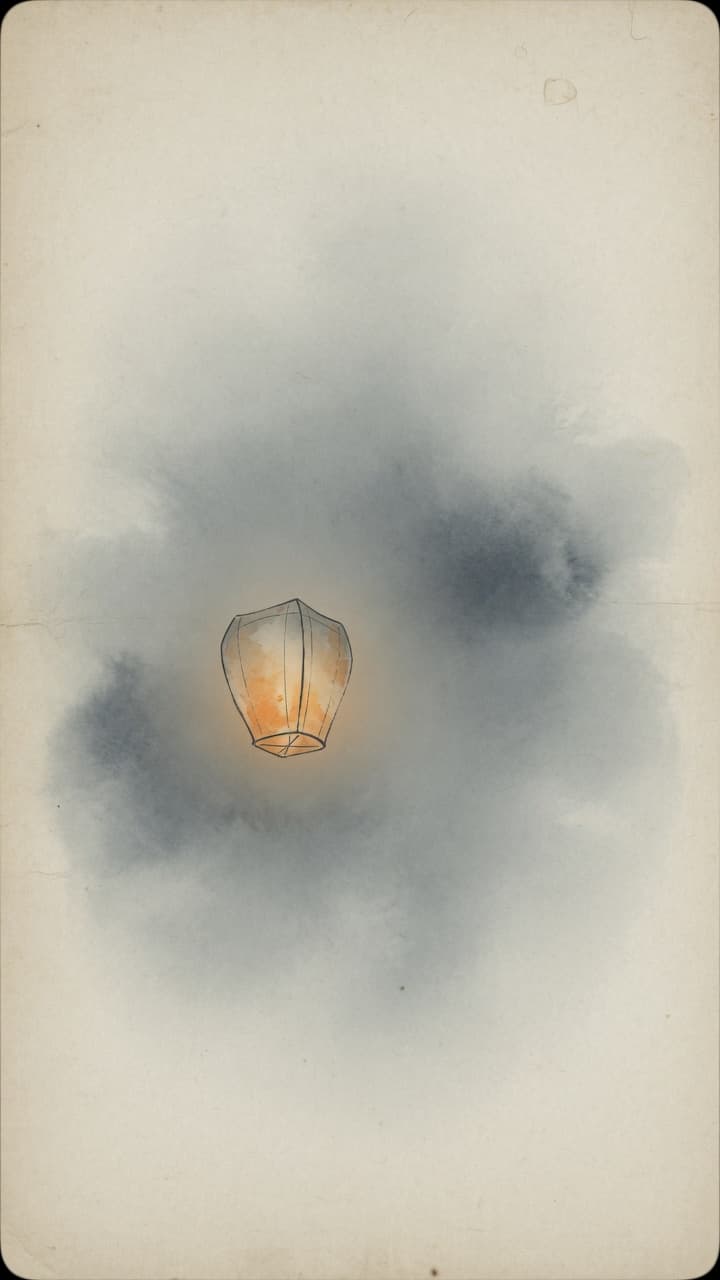
The app opens on paper and fog, with a lantern that breathes once, then the map. No long logo sting. The first launch does not ask for location permission right away; that prompt, and tracking itself, wait until you tap Start visit. If you have signed in before, the launch screen briefly shows Confirming sign-in… before restoring your signed-in state; being offline is never mistaken for being signed out, and a cold start offline does not drop you back to the sign-in wall: the phone keeps the last signed-in state (only a label with no sign-in credentials; the account is re-confirmed with the server once you are online), so offline you can still see your journal, collection, map, spirit energy and Traveler Pass status, the flight journal, and the last-loaded friends list, shared-journey list, weekly reflections and journey AI recaps. Actions that need the network say “This needs a network connection. Try again once you’re online.” instead of wrongly saying your sign-in expired.
Start a visit
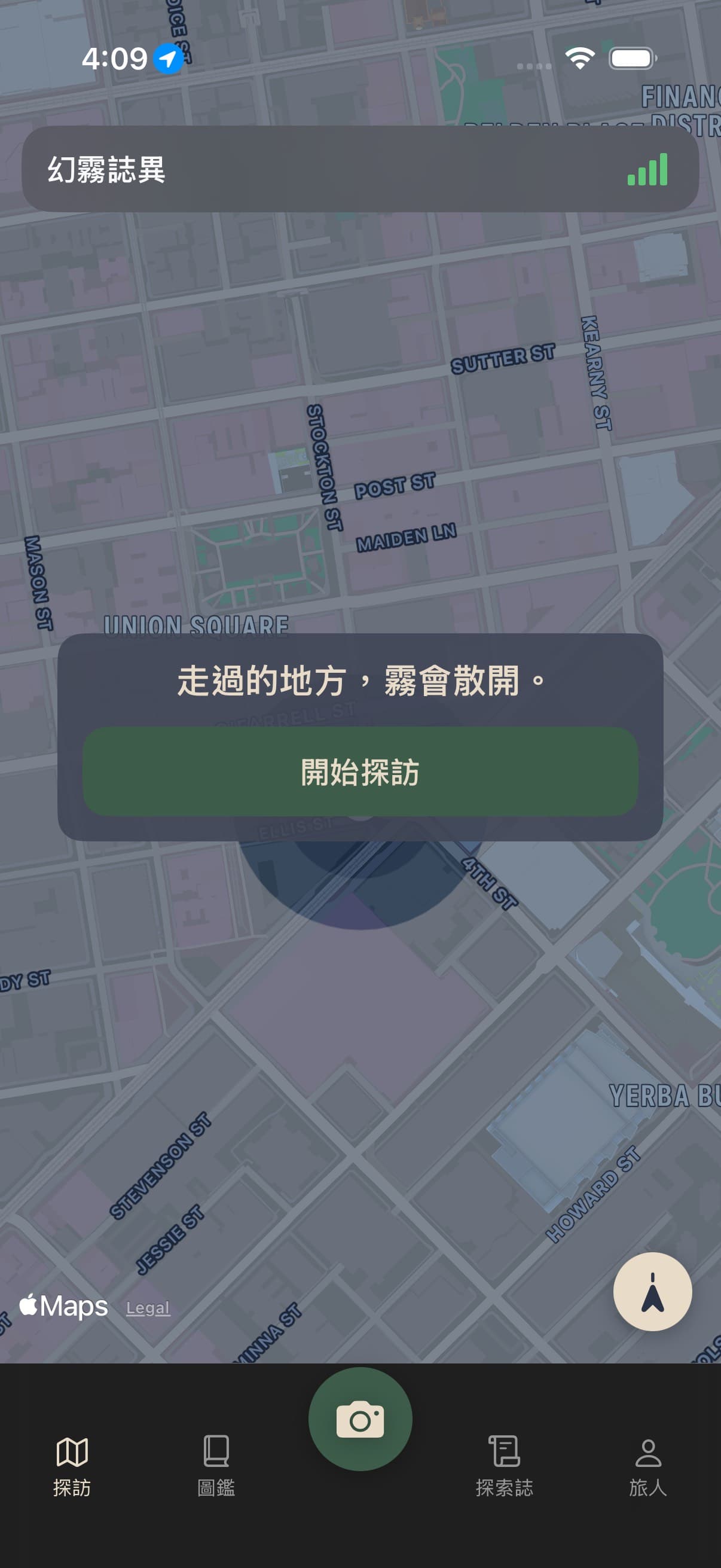
The visit page opens on a single card: walk, and the fog opens. Under it, one Start visit button. Tapping it is what raises the location prompt, and what starts tracking. On the first fix the map centres itself on you once, then leaves the map to you. During a visit the top row reads +N cells · distance · time, live. The fog-cleared notice while exploring now shows above the map. After your first cleared fog, a one-time coach mark appears above the camera button — photograph what is in front of you to make your first card — and does not come back. Tapping Capture before a visit has started asks first: start a visit and take a photo, or only take a photo. The top row also keeps Start visit and a 0–4 signal glyph. Lit bars are green; empty bars are gray. Tracking runs after you start. A long still spell pauses precise GPS; cell/Wi-Fi coarse fixes keep watch; walking or a vehicle turns GPS back on. Outside a visit the GPS is not left running: opening the camera, tapping recenter, or entering the visit page takes a single fix. The lantern V-beam is always on and does not extra-light fog. Two-finger rotate turns the map; the compass returns north-up. The beam stays on true north and does not tilt with the map. Tapping the compass button at the bottom right does three things at once: it snaps the map back to north-up, recenters on you, and points the spotlight beam at true north. The map does not pitch into 3D. A visit that crosses midnight becomes a new daily chapter; it does not end the visit. A visit and a journey are two different things: a visit is the stretch you record on purpose after tapping Start visit, while a journey — shown as a journal — is a chapter with meaning, written by itself once a visit ends. That entry is written into the new journal system in the background on the next sync, and then shows up on the Trail timeline (the book icon) and on the map's Journals layer. It needs you signed in; if the phone is offline right then, it goes out the next time sync runs. A visit still in progress is never sent early — it waits until the visit ends.
Trail
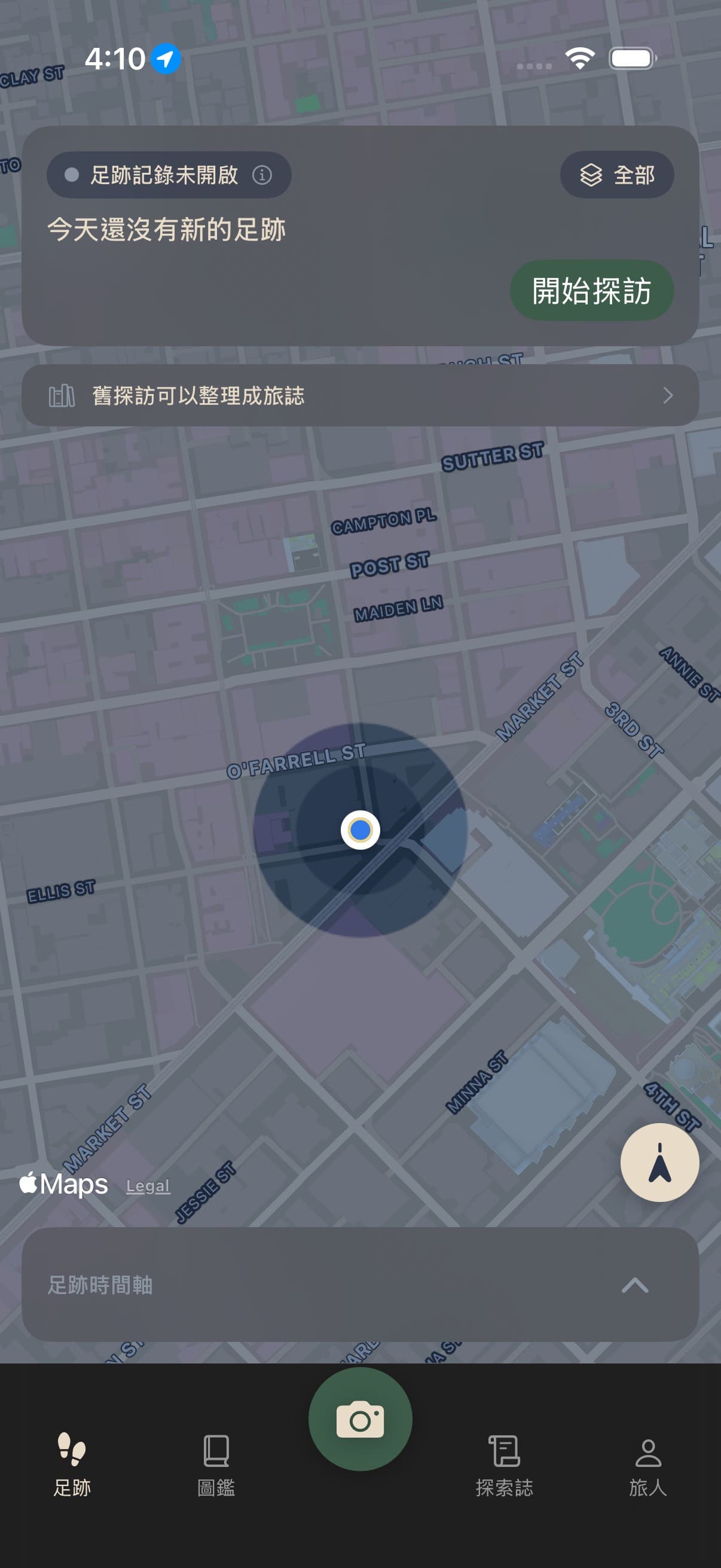
With the life trail turned on, the first tab at the bottom becomes Trail instead of the visit map. The top half is a map, with a status pill that reads your real state and says one of four things: Trail recording is off, the default; Records only while the app is open, once you allow location while using the app; Recording in the background, only with Always (walking with the app closed still clears fog, not just stays); and Location access denied if you refuse. The ⓘ beside it opens a sheet on what is recorded now, when it syncs, and how to pause, with a link straight to Location & Trail settings. The pill never claims more than the permission allows: without Always it does not say recording continues while the app is closed. Under it is the numbers line: normally today's quiet summary, Today +N cells · distance, or No new trail yet today; during a visit the same line reads +N cells · distance · time, live. Today's distance covers both what you walked on a visit and what the life trail recorded in the background, never counting either twice; stretches with too long a gap, or too fast to be walking, are left out — we would rather undercount than write a guessed straight line down as a path you took. All the numbers live on this card — the bar below no longer repeats them. The layers button at the top right reads All by default and opens a sheet titled Layers with nine choices: All, Today, This week, This month, This year, Journals, Old places, Memories, Companions. The first five switch time, and the map then keeps only that stretch of trail; Journals keeps only the cells still held by your journals — the fog each journal opened as you walked; delete a journal and its cells leave this layer (they stay on All), and the cells the background life trail recorded are hidden here. Old places keeps only the cells of stays you came back to on more than one day and that are not routine; the places you go every day never appear in this layer. Memories keeps two kinds of cell: the ones where you took a card, plus the stays judged not routine — the ones that became discoveries; a stay judged routine never shows up in this layer. Companions keeps one kind of cell: the ones you lit yourself that fall inside the coarse areas (H3 res-8, about 0.7 km²) covered by the shared journals you belong to; what gets drawn is always your own cells — not one cell of anyone else's trail is ever drawn on your map. The button always shows the one you picked, All to begin with. The card is two rows: the status pill and the layers button on top, then today's summary on the left of the second row with the Start visit — or End visit — button on the right of that same row; during a visit the signal bars appear on the status row, to the left of the layers button. A You can drag the map to look around and it stays there; the recenter button sits at the bottom right of the map and brings the camera back to you. Pinching out uses coarser fog cells and waits until the gesture ends before swapping layers, so the map does not go blank first. Walked fog polygons stay on this phone, so the map lays down the last layer before it talks to the network. Below the map is the Trail timeline panel, which now carries only the timeline — the same title whether or not a visit is running. The timeline remembers the latest page you loaded (up to 50 entries, no coordinates, kept in the phone's cache folder and not in backups), so offline you still see that page, and it is replaced with the latest content once you are online; deleting your location history on this phone, signing out, deleting your account or switching accounts also clears this stored copy. It has three heights: normally just the title row, then half screen on a drag up or a tap of the chevron, then its tallest (still leaving the map room); dragging down steps back one at a time. Ending a visit settles it at half screen so you can see the stretch you just walked. The timeline puts journals, visits, and discoveries in one time order. New discoveries are never confirmed one by one; at most one line a day gathers them as N new discoveries to look over, and tapping it opens the detail. Here is where a discovery comes from: with the life trail on, once the phone reports a completed stay — you arrived and you left — the app decides on this phone alone whether it is routine. Six different days at the same area across three different weeks in the last 28 days (a familiar zone), eight or more days at the same area at a similar hour within 28 days, a stay under ten minutes (just passing through), or a repeat in and out of the same area on the same day: all of those are routine and stay quiet in your records, and anything else becomes a discovery. A stay you photographed, wrote a note on, or marked yourself is never treated as routine. What reaches the server is only an H3 res-8 area key (about 0.7 km²) and the start and end time; coordinates never leave the phone, sign-in is required, and it goes out on the next sync. Tap the gathered line to see the detail, then long-press one of them for Keep and Not a discovery: both take it out of the new-discoveries count, and the one you dismiss is not surfaced again. There is no separate discovery page — discoveries live only in the timeline. While some are still unseen, a small amber dot sits at the top right of the Trail tab icon at the bottom, and opening the Trail tab clears it. Long-press any row in the timeline for Compile into a journal: it opens a New journal sheet with the start and end time already filled in from that row; type a name, adjust the start and end if you need to, and tap Create. The journal is created and the timeline reloads to show it. If creation fails, the sheet says the journal could not be created — try again — and tapping Create again retries without making a second one. The journal list has no + button; long-pressing the timeline is the only way in. While it is empty it reads: Discoveries and journals will appear here. Start a visit, or allow the life trail, and the places you pass will quietly accumulate. If the timeline cannot load, one quiet line inside that block says the timeline didn't load — tap to try again, and the map is never blocked. During a visit the paper lantern's V-beam comes back on the map and the signal bars light up beside the layers button, exactly as on the visit page; indoors or on a poor fix the beam hides itself. Three things to be clear about: the life trail is off by default; it starts recording only after you turn it on yourself in Location & Trail under traveler Settings and allow location in the system dialog; and you can pause it at any time — for 1 hour, until tomorrow, or until you turn it back on. A pause erases no revealed fog, deletes no data, and we do not get your location some other way while it lasts.
Capture and cards
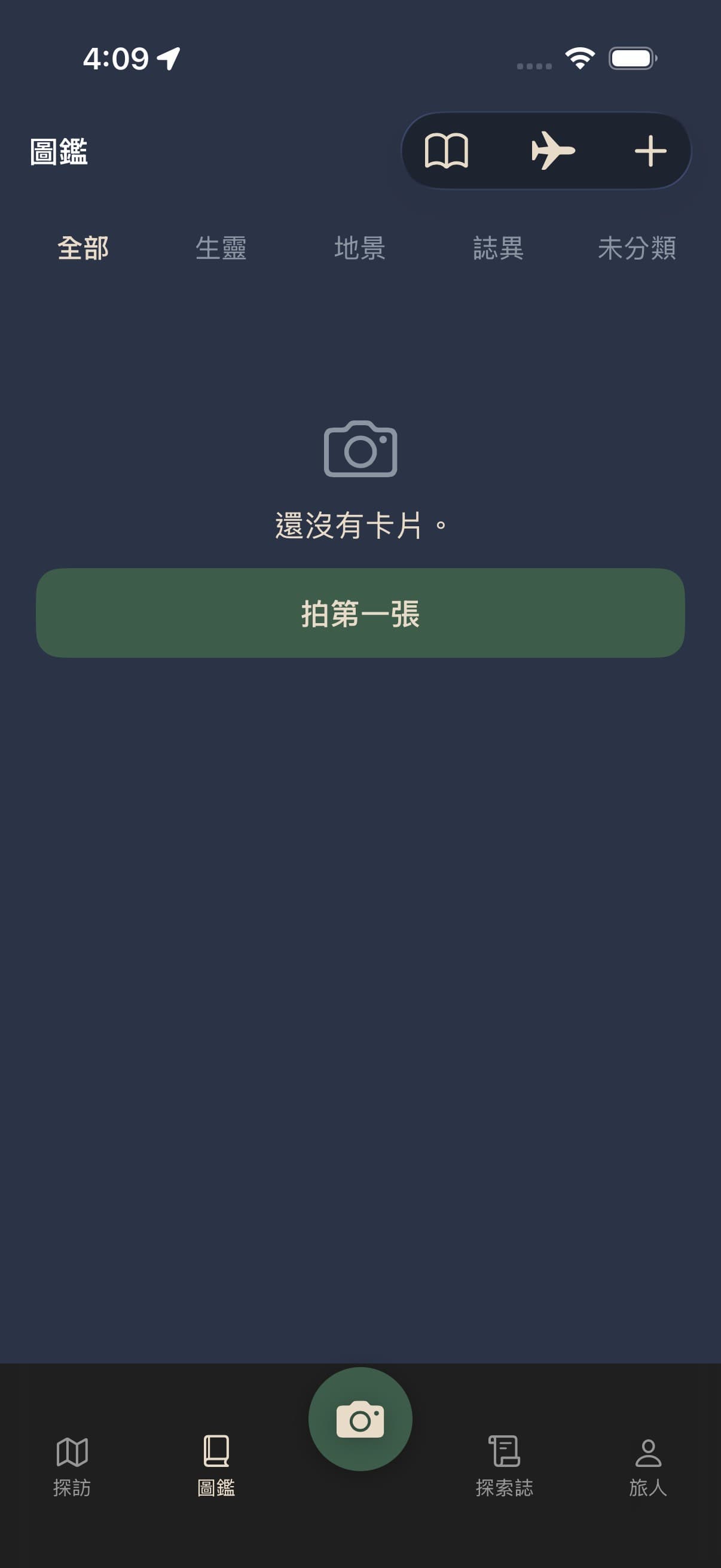
The Codex is a grid of cards under a row of category chips: All, Life, Landmark, Omen, and Unsorted. Tap a chip or swipe sideways to change category; scrolling the grid down does not shake the page. Three icons sit in the toolbar at the top right: plus, book, and airplane. Plus opens the photo library directly — there is no longer a choice between camera and library; use the capture button in the middle of the visit screen for the camera. The book opens the trip journal, the airplane the flight journal, and both are one level down — no page is ever more than two levels deep. A line reading N manifesting appears at the top left of the Codex only while cards are in the queue and takes no room otherwise; the ink count is not here — it lives only under the traveler code on the traveler page. A finished card you have not opened yet carries a gold New badge in its corner. With no cards at all the Codex holds only No cards yet and Take the first one. Swipe left for the next card, right for the previous. You can change a card's category after upload; switching life / landmark / omen clears the old myth face so you can manifest or research again. A card's detail view reads top to bottom: the card image, the description, a nutrition line right below the description (food only), then the Change category and Manifest again buttons, and your notes last; the card detail no longer shows the ink count. The original photo stays on the phone; the cloud keeps GPS-stripped thumbs and an archive, with capture time and GPS in data fields. A photo imported from your library is filed under its original capture time and place, not today; if it has no EXIF location, or a location but no capture time, it stays on the phone only — it does not light fog from where you are now and is not attached to the current trip. Landmark cards use MapKit to list nearby places; if unsure, you pick a name and it writes the back. A place needs two different travelers to confirm it before it appears in anyone else's candidate list. Open a trip journal to see and share cards from that walk; a share message is capped at 200 characters and is truncated beyond that. After manifestation the card stays on screen and is not kicked off by Codex tabs. On a small phone the card is a little smaller so Manifest stays visible. Food omens can write calorie and nutrient estimates, but only once you open the card — Codex tiles and the space under a card no longer show it. The settings switch decides whether that one line appears on the card. That is an estimate from the photo, not a lab test. Delete from the top-right. You can also save the field photo and the myth picture to Photos. Settings has Save live shots to Photos, off by default; turn it on and a shutter shot is copied into the library, while a photo you pick from the library is not copied again. Tap flips; pinch zooms. A landscape shot sits fully on the 2:3 portrait card with paper above and below; a portrait shot still fills. Tap the name on the card to rename; it saves when you finish. If a face is in the photo, a notice appears and the shot is not kept or uploaded.
Trip journal
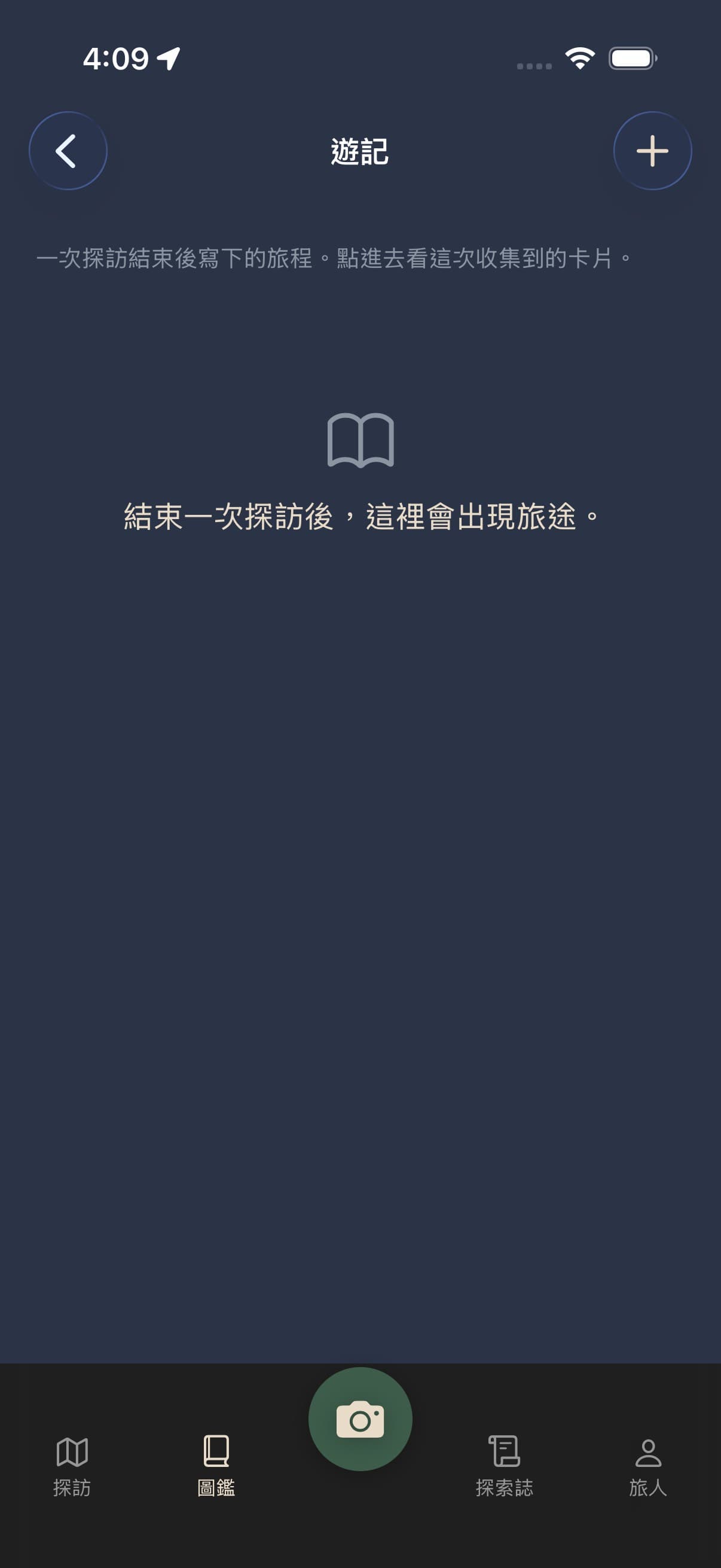
The trip journal is the book icon in the Codex toolbar at the top right, one level down. When a visit ends, that walk writes itself into a journal entry; open it to see the cards, distance, and cells you collected on that trip. That happens by itself in the background on the next sync, so it needs you signed in; if the phone is offline the entry goes out the next time sync runs, and a visit still in progress waits until it ends. The same entry also appears on the Trail timeline (the book icon) and on the map's Journals layer. Before you have finished a visit the page holds one line: once a visit ends, the trip shows up here. After sign-in you can share a trip; the share message is capped at 200 characters and is truncated beyond that. What is shared never carries exact coordinates. Each journal entry can be named, and you can write notes for the trip. Swipe left in the journal list to delete a finished trip (an in-progress visit offers no delete — end the visit first); deleting removes only that trip record — the fog cells you lit, and the photos and cards you took, all stay. After sign-in, names, notes, and deletions follow your account to other devices — switch phones or reinstall, and a renamed journey keeps its name while a deleted one stays gone. Renaming a journal here also updates the same entry on the Trail timeline; that is best effort, so if the phone is offline at that moment the timeline name can lag until your next rename. Notes stay as they are — the timeline does not show them. The Your old visits can become journals row on the timeline is still there for the first bulk send of your older visits, and once everything has gone across, that row disappears by itself. A journey that has ended and synced to the cloud gains an AI recap block on its page. If one has been written before, the latest one is shown; if not, there is a Write a recap button. The recap is written by AI from your own records; it only cites your cards, discoveries and journals, never precise locations — and that same line is printed under the recap itself. It needs consent first, on AI Memory & Recap under Traveler → Settings; without it the block only reads Turn on AI memory consent first., with a link straight to the consent page. The allowance is 1 a month on the free tier and 30 a month with MythFog Pass, counted per UTC calendar month across all your journeys; used up, it reads You've used this month's allowance. Come back next month. Too few records on the trip reads Not enough records on this journey to write a recap. A draft that fails our checks is not saved at all — That draft failed our checks and wasn't saved. Try again. — and that attempt still uses one of the month's slots. A journey that has not synced yet only reads This journey hasn't synced to the cloud yet. A recap needs that first. Long-press any recap paragraph for a menu: View sources (free) opens a Discoveries this paragraph cites sheet listing the title, note, and date of every discovery that paragraph cites, or This paragraph cites no sources. when there are none; Rewrite this paragraph first asks Rewriting this paragraph uses one of this month's recap allowances. — confirm it and only that paragraph is rewritten and replaced, drawing on the same allowance as the full recap (1 a month free, 30 a month with MythFog Pass); Delete this paragraph is free, but isn't offered when only one paragraph remains, where it reads The last paragraph can't be deleted; rewrite it instead. If another device edited the recap first, the screen reads The recap was just updated and has been reloaded. Try again. and reloads the latest version automatically. A journey that has finished and synced also gains a Companions block under the recap. It lists the journal's members, each name marked Owner, Companion, or Invited; a journey that has not synced only reads This journey hasn't synced to the cloud yet. A recap needs that first. The owner gets two buttons. Invite a friend picks someone from your friend list — only friends can be invited, inviting anyone else reads Only friends can be invited, and with nobody to pick the list reads No friends to invite yet. Use an invite link for people who don't have the app. Invite link creates a link, with a Share invite link button under it and the line The link works for 7 days; whoever opens it and signs in becomes your friend and joins this journal. A member who is not the owner sees only Leave this journal here. There is a cap, counted in companions and never counting the owner: up to 3 companions per journal without MythFog Pass, 20 with it; once full it reads This journal is full: up to 3 companions without Traveler Pass, 20 with it. Inviting itself never requires MythFog Pass. At most 20 invites go out a day, and beyond that it reads Too many invites today. Try again tomorrow. A visit still running cannot be shared — end it first. What companions can see is only this journal's name, its member list, and the visits its members added to it; nobody's private life trail is ever visible. Once a block exists either way the two of you cannot see each other's shared journals at all: the blocked side reads nothing of the journal and can no longer be invited. At the bottom of the journal list is a Shared journals block listing the journals other people invited you to, each reading someone's journal · N companions; the ones still pending carry Join and Decline, and with none it reads No one has invited you to a journal yet. That block needs sign-in.
Flights
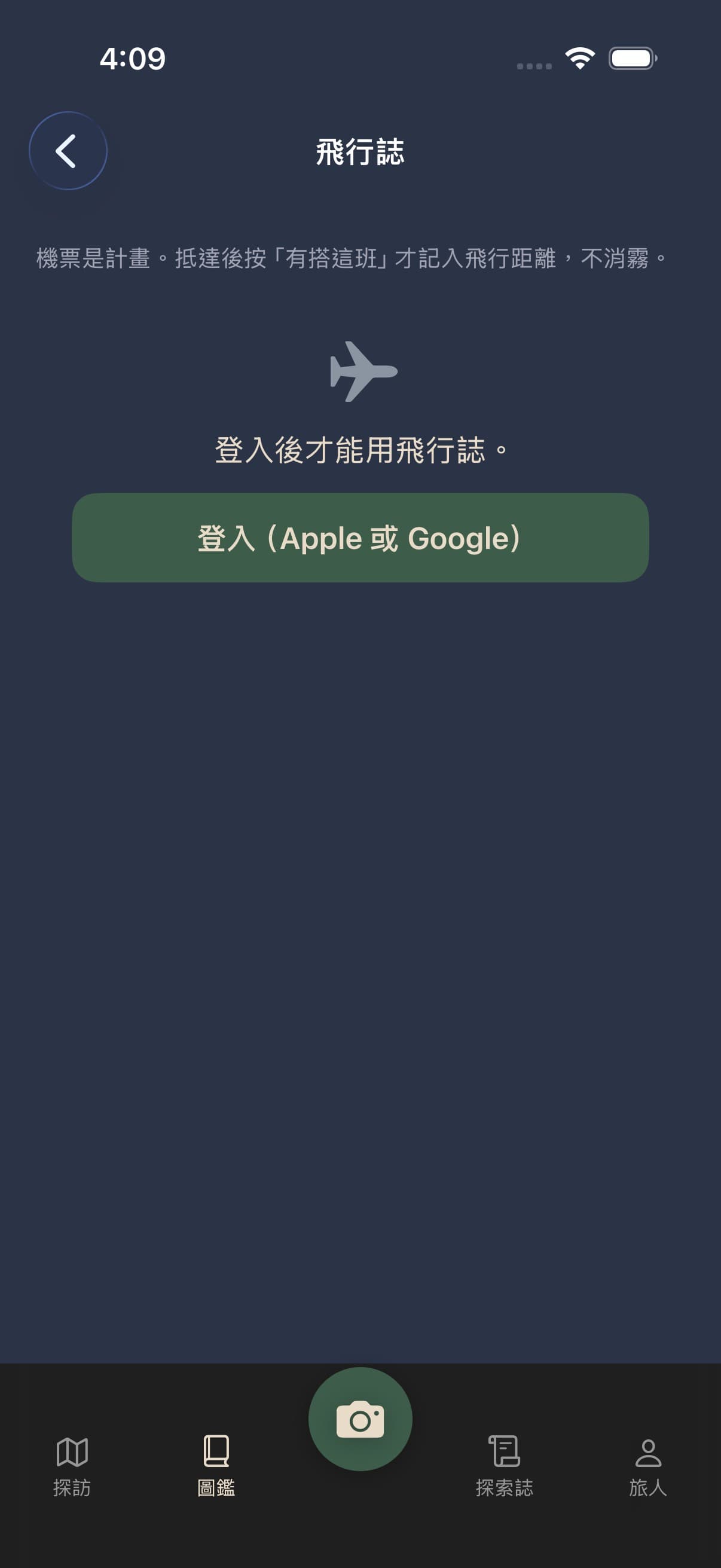
The flight journal is the airplane icon in the Codex toolbar, beside the trip journal, one level down; sign-in is required, and signed out the page says only that the flight journal needs sign-in. Upcoming flights are cards, nearest first; swipe left to delete. The card shows the flight number with the airline (for example BR102 EVA Air), departure and arrival times, and the terminal when known — not the airport’s full name. Flight hours sit beside the leg distance and use airport time zones, not a raw clock subtraction. The last list opens from this phone, then refreshes in the background. There is no Did not take button. Search by flight number and date on the same screen. The private forwarding address is in the envelope at the top right: signing in makes a random @inbound.mythfog.com address; copy it, do not publish it. Swapping it for a new one retires the old address. Or forward airline or booking mail to that address. Parsed legs wait for you to confirm and are not counted as taken. Distance counts after the departure time. It does not light fog or add to visit distance. Origin and destination countries of taken flights show on the gazetteer Land tab, marked beside the name. Major world airports and trunk routes are preloaded so a flight-number search fills in the airports immediately, without waiting on an outside lookup. Flights already in the journal do not show in the envelope. After you delete every matching flight from the journal, the same ticket mail can be added again. Live times still use a public timetable and overlay when available. A background job slowly fills worldwide regular routes into the shared catalog; it does not scan every flight every day. Lookups and confirmed flights stay in a shared catalog so later searches are faster. If the timetable is unreachable, you can still type a flight number or forward mail.
Manifestation
After sign-in, daily ink can queue a card. Tap Manifest or Research and the card turns to its back. The back is a sheet of paper, and ink spreads along its fibres — not in a circle, but the way that paper's own grain lets it run; the same card takes the same path every time you open it. While the server works the ink holds at four fifths and breathes there, and the back still says which stage it is at. When the picture arrives the ink carries on from where it stopped — it never jumps to the result and never replays from the start; you can walk away, and the first thing you see on your return is it finishing, with a dried tide line left where it waited. What the ink uncovers is a foil card: one of four foils — paper, prism, lattice, gold — is chosen when the card is made and never changes. The setting defaults to on; you can turn it off. Landmark research spreads the same ink, without the foil. Reduce Motion shows the finished card outright, with no animation. The myth face takes its sky from the weather at the second the shutter went: clear, cloudy, fog, rain, thunderstorm, typhoon, snow, or night — typhoon outranks rain, and a rainy night counts as rain. With no weather to be had, no sky is written and no default is substituted, so the same cat in different weather becomes a different beast. Cards that used weather carry the Apple Weather attribution. A manifested card can be manifested again for one more ink; the myth face is replaced, the reality face stays. Once queued, the card walks three stages around a progress ring — Queued, Creature emerging, Fetching picture. How much ink you have left shows only under the traveler code on the traveler page; the card detail and the Manifest button no longer show it. Sending says Queued. You can leave; we will tell you when it is done. A failure does not rewrite the reality facts. Only landmark research needs a capture location; without one you fill the verso yourself. Life and omen cards can still manifest without GPS. Life lore is a specimen label; omen lore is a field note. Ink shows under the traveler code on the traveler page: three slots, plus a gold one after seven hours of healthy sleep. The daily refill turns over in your own time zone, not UTC; when the app sends no time zone, Taipei is used. If a landmark photo's GPS is not accurate enough, you are told before any ink is spent, so none is wasted; after three failed retries on the same photo it stops retrying and the ink is returned. The notification permission is asked only after your first successful manifestation; after that, manifest-complete, ink-refilled, and guardian-reminder pushes can each be turned off in Settings.
Gazetteer
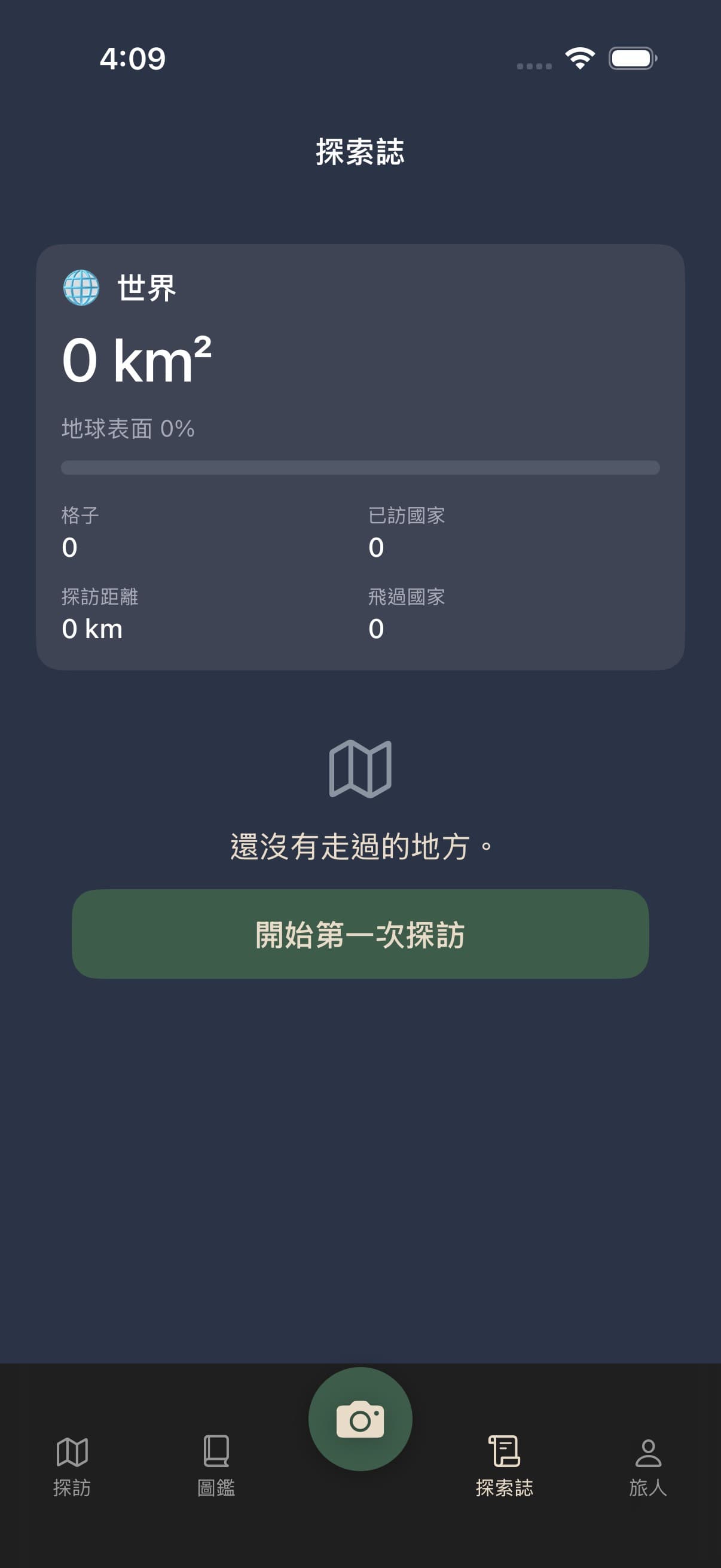
The gazetteer is now one page: Land above, the Activity Recap card (formerly Daily Ritual) at the bottom, no more tabs, and Friends has moved to the traveler page. The world summary card comes first: explored area, the percentage of the earth's surface, cells, countries visited, visit distance, and countries flown. Below it are continent chips, a search field, and the country list: swipe the country list to switch continents and the chips move in sync with it, or tap a chip and the list jumps there. Visited countries come from visit cells, flown countries from taken flights (airplane mark beside the name), never lighting fog or adding visit distance. Search countries in Chinese, Japanese, or English, and sort by name or explored area. On a small phone the world summary scrolls with the country list. Before you have walked anywhere the page holds only the world card and a Start your first visit button. The Activity Recap card (steps, sleep hours, and a 7-day step bar chart) has moved off the bottom of the gazetteer to the traveler page, just above the Friends row; the gazetteer now ends at the country list.
Traveler
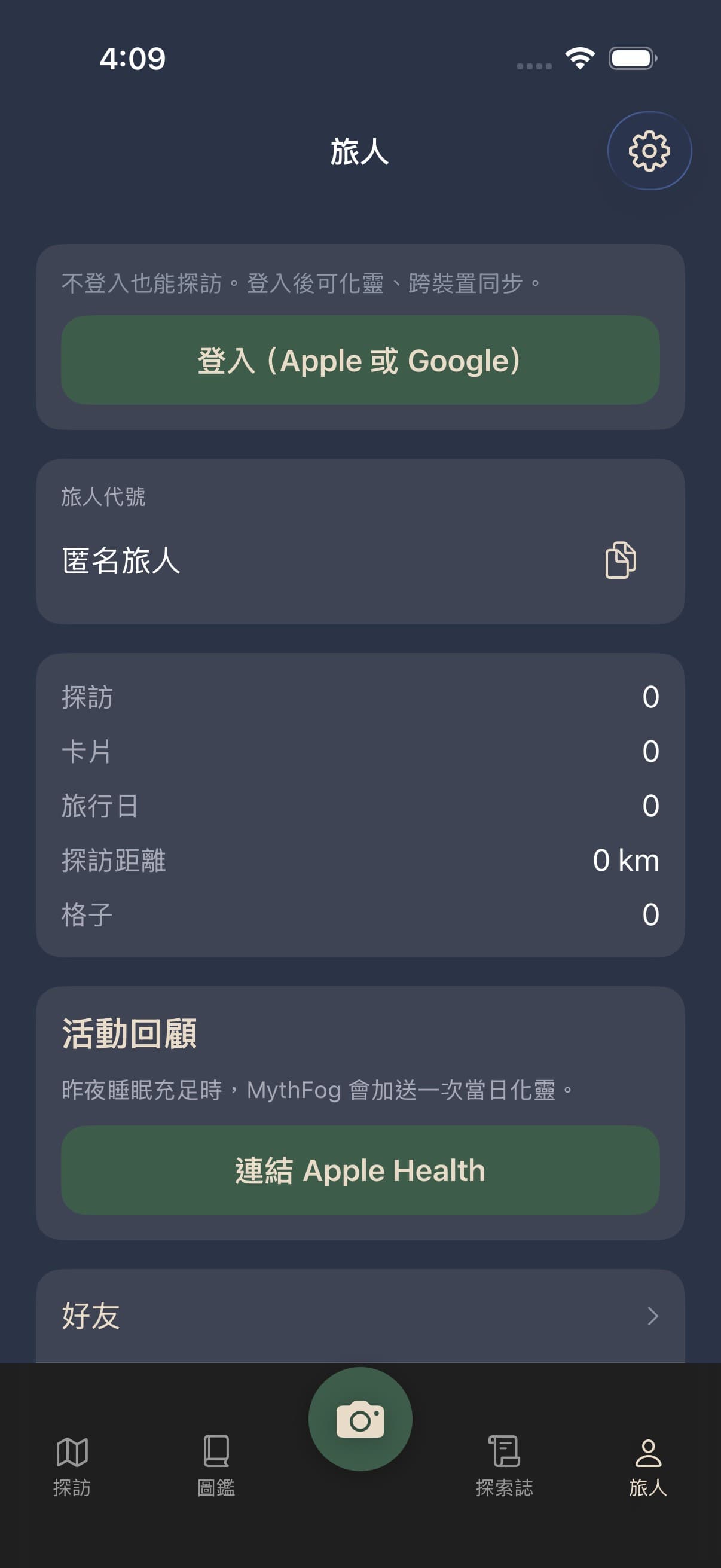
On relaunch, if you have signed in before, the page briefly shows Confirming sign-in… before restoring your signed-in state; being offline is never mistaken for signed out. You can visit without signing in. Signed out, the traveler page opens with the sign-in button and one line: you can visit without an account, and signing in adds manifestation and cross-device sync. Signed in, that card folds away. Below it is the traveler code: yours to set and change, with the copy button beside it. Apple or Google sign-in fills email and does not change the traveler code. Reserved lists block names like sex. Directly under the traveler code is the ink pip bar, for example 3/4; it is hidden when signed out. The ink count lives only here, under the traveler code — the card detail and the Manifest button no longer show it. Then a block of numbers: visits, cards, travel days, visit distance, cells. Below the numbers and above the Friends row is the Activity Recap card (formerly Daily Ritual) — your own recap of activity and sleep: with Apple Health linked it shows steps, sleep hours, and a 7-day step bar chart, never clock times; before linking it holds one line, After a night of good sleep, MythFog adds one extra manifestation for the day, and a Connect Apple Health button, and health distance is never added to visit distance. Then two rows: Friends, with a count when invites are pending, and Visit Guardian, which reads Not enabled until you set it up. The gear at the top right opens Settings. Language can be Chinese, English, or Japanese from Settings, and buttons, tabs, and help text switch with it. The whole app has a single toast, at the bottom, gone after three seconds; anything that needs iOS Settings — camera, location, or notifications turned off — uses a dialog with a Open Settings button instead. No page is ever more than two levels deep.
Friends
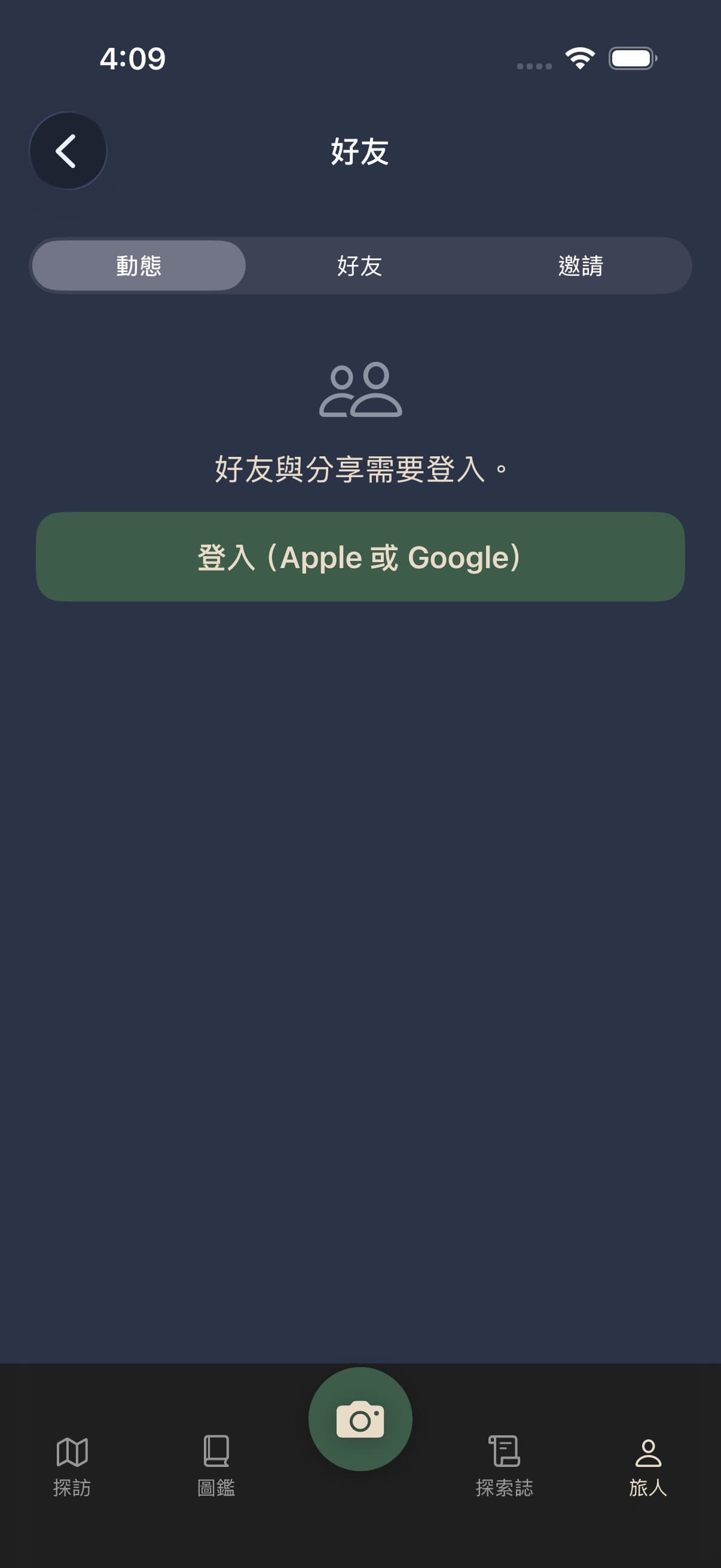
Friends is the first row of the traveler page, one level down. The page has three tabs: Feed, Friends, and Invites; signed out it holds only Friends and sharing need sign-in and the sign-in button. The plus button at the bottom right searches by exact traveler code, copies the invite link, and shows a QR; never the system ID. An existing friend can be removed, and after that neither side sees the other's feed. An invite link or QR does not auto-add a friend; on an iPhone, tapping mythfog://invite/… or https://mythfog.com/invite/… opens the app. During a visit you may share live location with one friend: coordinates upload every 15 seconds only after you tap start sharing, they see it only after tapping your name, uploading stops when the visit ends or you stop it, and the server keeps only the latest point. If a share runs past an hour, a reminder that you are still sharing arrives every 60 minutes, and you can stop at any time. Friend shares never carry exact GPS. Offline, the friends list and the shared-journey list show what was last loaded (kept in the phone's cache folder, not in backups) and are replaced with the latest once you are back; if a read fails and nothing was stored, the page says “Can’t load this right now. Try again later.” rather than claiming you have no friends. Offline, sending an invite, accepting or declining, unfriending, reporting and starting a location share all say “This needs a network connection. Try again once you’re online.”; Stop sharing says stopped only when the server confirms it, and otherwise says plainly that the stop did not go through and the share is still running; an invite link you open offline is not thrown away, and you can still claim it by opening the Friends page once you are online.
Visit Guardian
Visit Guardian is the second row of the traveler page, one level down, and a page of its own; signed out it holds only a sign-in prompt. The guardian is one emergency contact email you add yourself: give a label and an email to send the invite, and missed-check-in mail starts only after they accept the link in that mail. You may arm before they accept. Each guardian has Send the invite again and Remove and invite someone else; the same email cannot be added twice — send again, or remove them first. After Send the invite again, that same row says the invite was sent to this address and when it last went out. After a send, wait a minute before sending again. The arm control is a single button: press it, confirm, and it flips to Pause; press again to arm once more. This page also has a Who I guard list: when someone sets you as their guardian, you see their name and status (waiting for you, or accepted) and can accept or cancel right there. When a guardian invite email arrives, tapping the link in it on an iPhone (https://mythfog.com/safety/contact/…) opens the app to an explanation card where you accept or decline on the spot. The top of the page is a large I'm safe button. You can arm and tap it with no guardian yet. The cycle is 24 hours: after a tap the button changes colour until 24 hours after the last tap. Don't tap again within 10 minutes. Offline, this page shows the status and guardian list it last read and says so at the top: “Offline: showing the last data (time)”; stale data never shows the green that means you just checked in, and the Visit Guardian row on the Traveler page stays blank until it has read the server instead of saying Not enabled. If you tap I’m safe offline while armed, that tap has not reached your guardians yet — their timer is not reset — and the page shows “1 check-in waiting to send” with an explanation. When you are back online and the app is open, it is sent automatically and counted at the time you tapped, not the time it was sent; afterwards the page reads the server again, and if the missed-check-in notice is still active, or the status cannot be read, it says so and asks you to tap I’m safe again while you are online. Sending only happens while the app is running: if the app stays closed, the tap waits on your phone until the next time you open it, and a tap that has not been sent within 24 hours is discarded. Once armed, the system reminds you 2 hours before, 1 hour before, and at the due time. Walking about 400 m on a visit also counts as a check-in. After 24 hours with neither, email goes to that one accepted guardian, in your current language plus English. The switch labelled I have read the limits now spells the limits out beside it: MythFog will not contact police, fire, or hospitals, email is not guaranteed to be read at once, and any location in the mail may be old. Turning the switch on counts as having read them. Arming has a separate checkbox for attaching your last location to that mail; leave it off and no coordinates are sent. The server checks for missed check-ins every 10 minutes, so the app does not have to be open; a failed send is retried up to three times; and tapping I'm safe cancels any notice not sent yet. The guardian page, the invite card, and the map header during a visit all carry the same fixed disclaimer: “MythFog is not navigation, rescue, or an emergency service. Signal, battery, and location can fail. In danger, contact local emergency services.” We do not call police, an ambulance, or government agencies. A missed check simply means no tap and no real movement, not that something happened. Arming asks for the notification permission if it has not been asked yet; the guardian reminder can be turned off later in Settings.
Settings
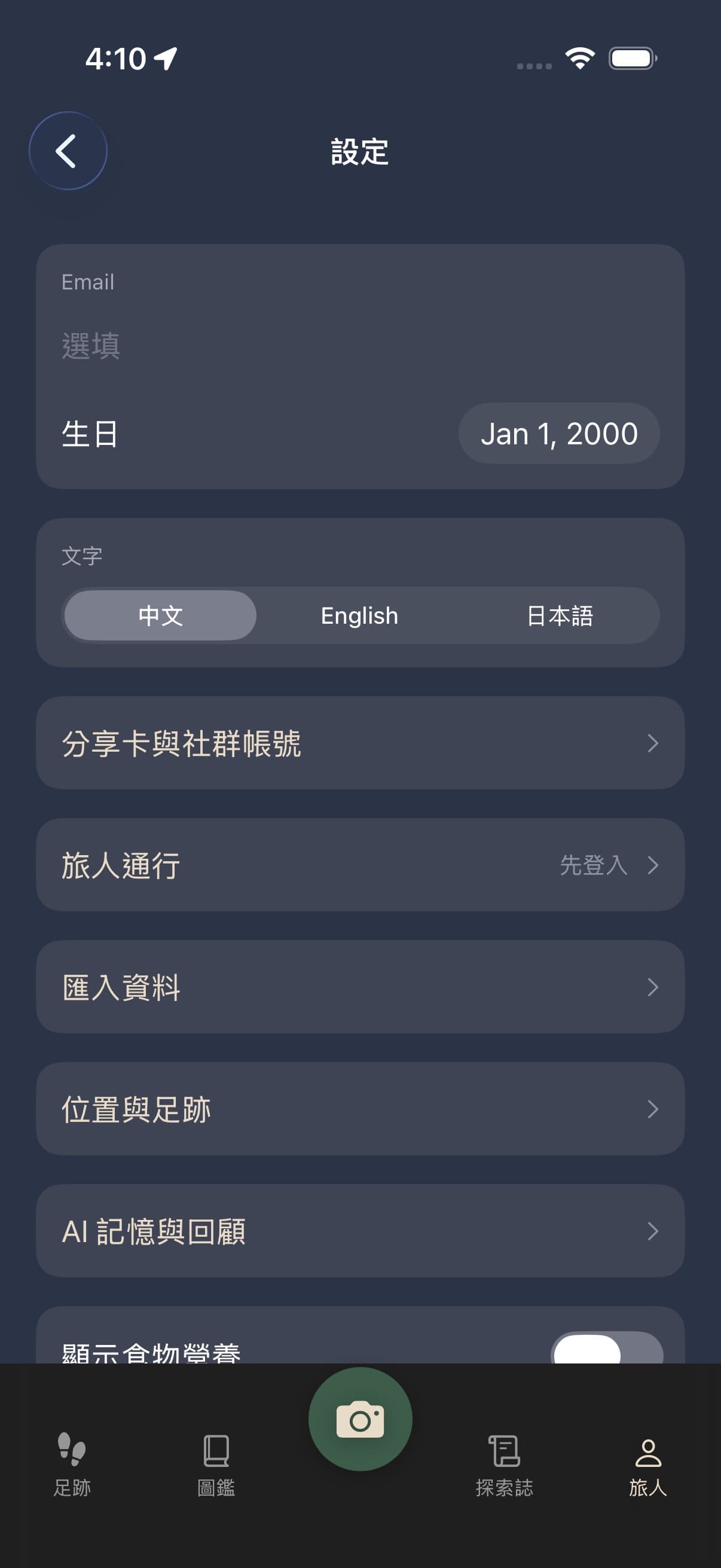
Settings is the gear at the top right of the traveler page, one level down. Email (optional) and birthday come first; birthday is a date field with no toggle, and leaving the page autosaves email and birthday. You can edit them offline too: they are saved on the phone first, the Traveler and Settings pages mark them “Not sent yet”, and they are sent automatically once you are online with the app open. If the server does not accept a change (an invalid email, or an age under 13), the next time you open the Traveler page it tells you why and puts the field back to its previous value; the under-13 rule is still decided by the server at the moment of sending, and queueing does not loosen it. Changing your traveler code has to be checked with the server for duplicates, so it cannot be done offline: it says “This needs a network connection. Try again once you’re online.” and you can change it once you are. When the Terms or Privacy Policy are updated, the consent screen is not shown while you are offline; it appears the next time you open the Traveler page online. If you switch Photos for AI training offline, the choice is kept on the phone and sent automatically once you are online; until the consent version has reached the server, photos still do not upload. Then language: Chinese, English, or Japanese. Then Share card and social accounts: after sign-in you can add X, Threads, and Instagram, each with an eye toggle for showing it publicly; the system ID is never shown. Below the food nutrition switch is a single disclaimer line, not a list of manifested foods: that is an estimate from the photo, not a nutrition label or medical advice. Turning it on shows each food's estimate inside its own card only; there is no total anywhere. Save live shots to Photos is off by default: turn it on and a shutter shot is also copied into the Photo Library; a photo you pick from the library is not copied again. A card's toolbar can save the field photo and the myth picture to Photos. Notifications have four switches: manifest finished, ink refilled, the Visit Guardian reminder, and Friend manifested. The first three are on by default; Friend manifested is off — turn it on yourself and you get a push when a friend's card finishes manifesting, tapping it lands on the traveler page, and the push carries no location at all. Sign-in is required to set notifications, and if system notifications are off the page says so and points you to iOS Settings. Above them sits one more switch, New discoveries today, off by default: it is a local notification the phone schedules itself, never the server, at most one a day, and it arrives only if you turned it on and allowed notifications in the system dialog. It reads: New discoveries are waiting. Open your trail to look. The sign-in screen's Photos to improve AI box is unchecked by default — you can sign in without it and nothing works differently — and Photos for AI training can be switched on or off here at any time; turning it off keeps new photos out of training data while sign-in, sync, and manifestation keep working. Above Terms are icons for the website, handbook, X, Threads, and Instagram, plus Share with friends; below that are Terms of Service and the Privacy Policy, and the version and date sit at the very bottom. Under Share card and social accounts are two rows, MythFog Pass and Import data, each explained in its own section below. Two more rows sit under those. Location & Trail holds the life trail's main switch — off by default — and every control for it: current status (location ability, last recorded today, sync status, and Power usage mode — the accuracy preference starts at Battery saver, so the mode starts at Low), Pause recording (for 1 hour, until tomorrow, or until you turn it back on), Data scope (turn off Sync my chronicle and the trail stays on this iPhone only, uploading nothing and appearing on no other device — from that moment on, even the batch not yet sent stays put, and turning sync back on never backfills what was recorded while it was off; cells you lit while it was off also stay on the phone, and after you turn it back on a cell starts syncing only once you walk through it again, counted from that visit), an accuracy preference (Battery saver, Balanced, or Precise — these really do change how densely you are sampled and how much power that costs; Battery saver is both the default and the baseline, the other two sample more often), Keep raw locations for (7, 30, or 90 days, 30 by default — anything older is deleted automatically, while fog you have already cleared, journals, and stats are the compressed results and are untouched), and Clear & export: clear the raw trail for one day, export data, delete all location history. Clearing and deleting remove that period's raw location samples and stays, plus the discoveries and visit records derived from them — fog already cleared, cards, and journals are untouched — and you are told how many records went. Exports are packed by a background job: press the button and you can leave — when it is ready we email a link that stays valid for 24 hours to your sign-in email (the verified one from Apple or Google sign-in — the optional email in Settings is not used for this). No verified email is fine; come back to this page for the download link. Export and deletion are open to everyone and never require MythFog Pass. One caution: that link downloads without signing in, and the file holds your precise location history, so don't forward it. AI Memory & Recap is a page of explanation that starts at Not consented: only after you explicitly consent do journal titles and notes and discovery titles go to a third-party AI service, for memory search and journey recaps. The page lists outright what is never sent: precise coordinates, frequent places, live location, the guardian's email, and health data. You can withdraw at any time; the moment you do, the memory index on the server is deleted with it, while your journals and notes themselves are not, and declining changes nothing else in the app. Account deletion is here too: cloud personal fields, visit cells, trip journals, myth images, and field photos are all deleted, synced records on the phone are cleared with them, and the Sign in with Apple authorization is revoked as well; before deleting, a reminder notes that MythFog Pass (the subscription) does not cancel itself and offers a link to manage it in the App Store. Photos and cards on the phone stay, marked as kept on this phone only, and are never uploaded or manifested again. Signing in again is a new traveler. The same applies when a different account signs in on the same iPhone: the previous account's cells, visits, and synced records are cleared first, and its photos are marked as kept on this phone only — nothing carries over to the new account. Two more rows sit under AI Memory & Recap. Ask my life asks one question and finds your own records: the page opens with Ask a question and find your own records. It only searches the journals and discoveries you left behind; nothing is made up., the field hints e.g. When did I last go to the sea?, and a Find button sits beside it. What comes back are snippets from your own journals and discoveries, each labelled with its source — a journal that matches one on this phone shows its own title. Nothing is generated, guessed, or invented; with too little to go on it reads Not enough records to answer that. This page needs AI Memory & Recap consent too, and without it reads Turn on AI memory consent first. with a link to the consent page. The allowance is 5 questions a month on the free tier and 200 with MythFog Pass, and once you have asked, the line N of M questions used this month appears above the results. Weekly reflections is read-only and needs no AI consent: the server writes one for you each week, a day after that week ends, and this page lists them one line per week. A week you walked reads N cells lit this week, out walking on M days.; a week with no new cells reads A quiet week: no new cells.; a week with nothing at all reads No records this week. The free tier sees only the last 8 weeks, and a trimmed line carries (summary) or is replaced by Preview: the full reflection is part of Traveler Pass. Before there is a week to look back on, the page reads No week to look back on yet. Walk through one and come back. Weekly reflections and a journey's AI recap are stored in the phone's cache folder while you are online (not in iCloud or computer backups), so offline you still see what was last loaded, and it is replaced with the latest once you are back; when a read fails and nothing was stored, the page says “Can’t load this right now. Try again later.” instead of claiming there is nothing. Revoking AI memory and recap consent also clears the recap text stored on the phone.
MythFog Pass
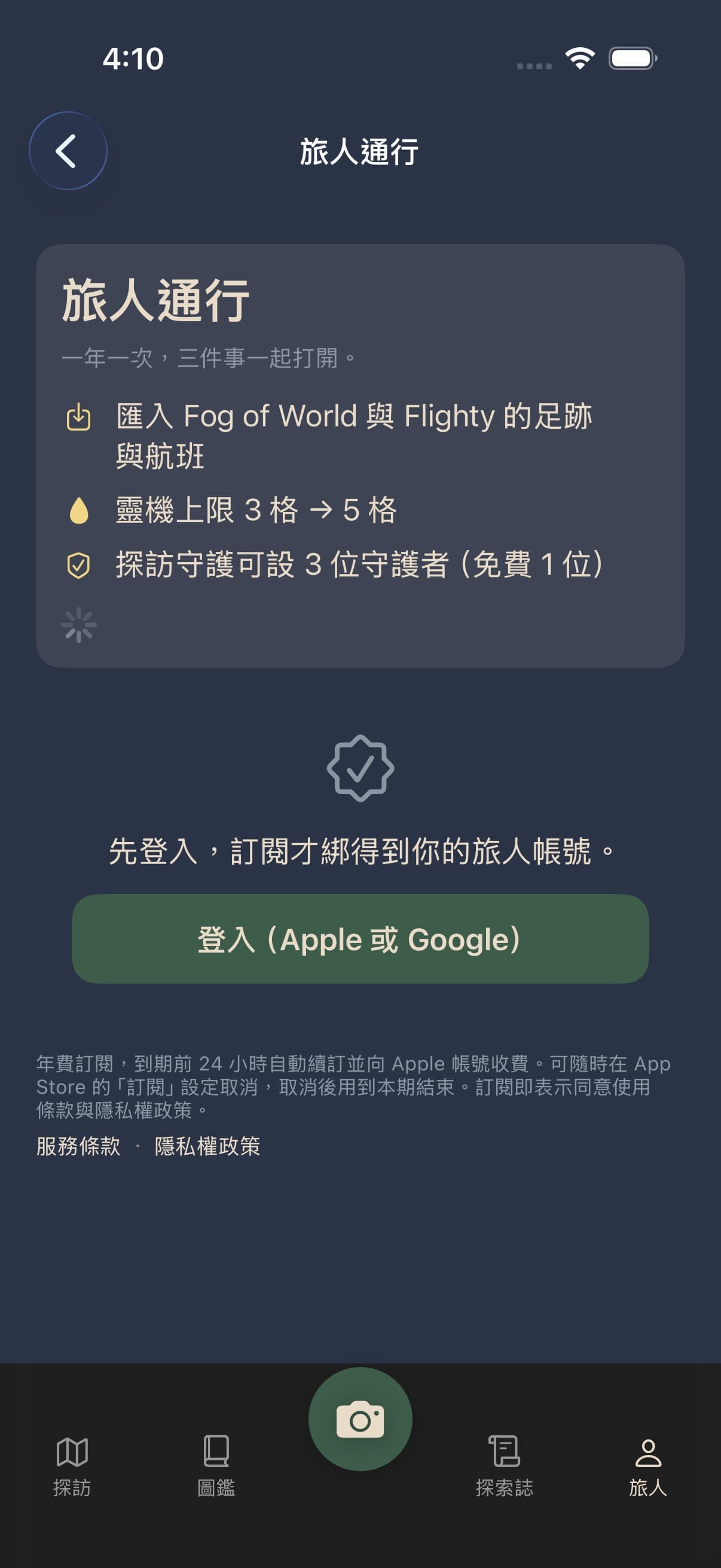
MythFog Pass in Settings is a yearly subscription, one plan only, priced as the App Store shows it. Three benefits: import Flighty flights and Fog of World trails, the Ink cap rises from 3 to 5 pips, and Guardian can hold 3 guardians instead of 1. Opening it shows the paywall: Subscribe for a year and Restore purchases, which brings the Pass back on a new phone or after a reinstall. Once subscribed the row reads Active until with a date, and the page adds Manage subscription. It renews automatically and your Apple account is charged within 24 hours before the period ends; cancel in Subscriptions under your App Store account settings and the Pass runs to the end of the period; refunds follow Apple's rules and are requested from Apple.
Import data
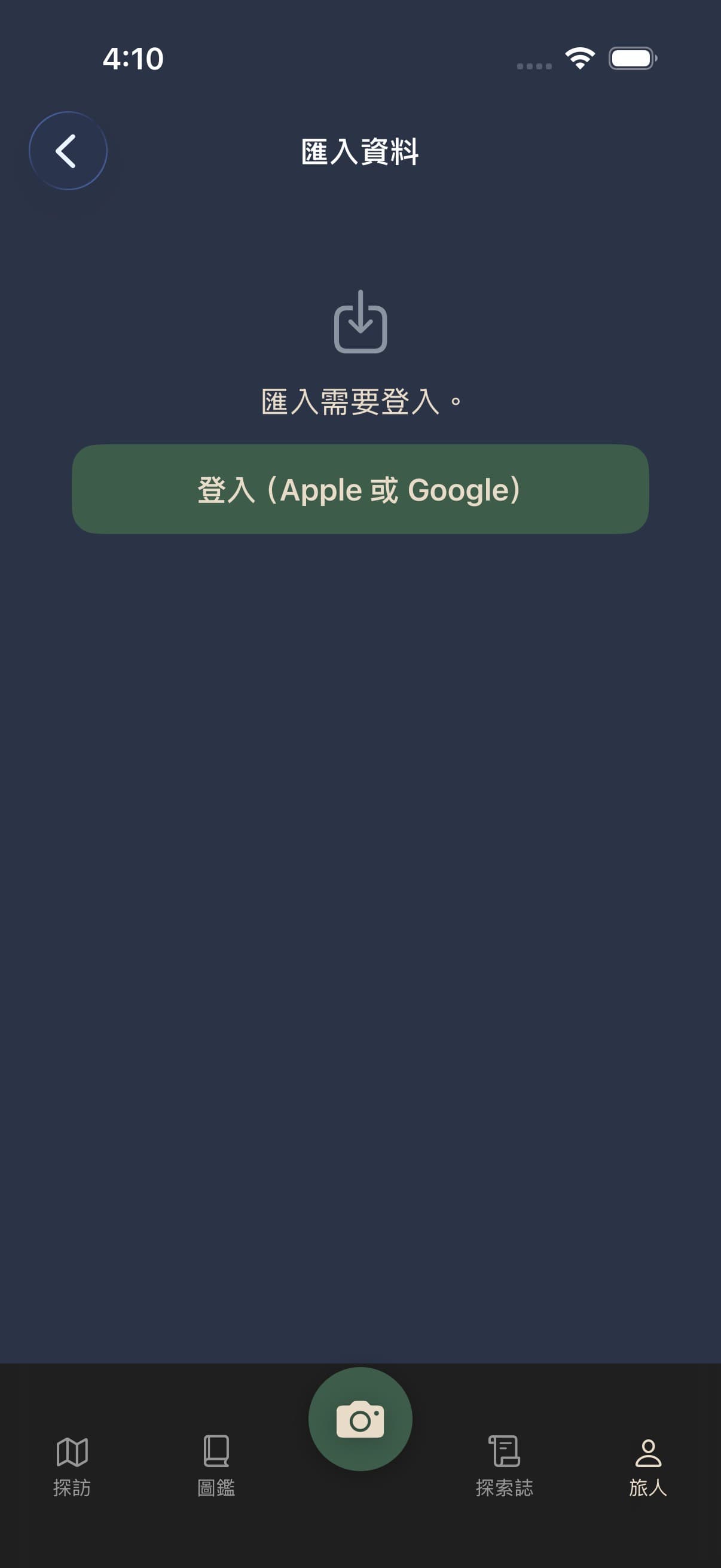
Import data in Settings is the only way to bring another app's history in; it needs sign-in and MythFog Pass. Without the Pass the page shows a lock reading “Importing Flighty flights and Fog of World trails is part of MythFog Pass. Past imports stay visible and removable.” The page lists two sources: Flighty, which takes the flight CSV Flighty exports, and Fog of World, subtitled “Import a Fog of World backup folder (unofficial)”. Flighty first: in Flighty open Settings → Account Data → Export Your Flights, share it to Save to Files, then come back and pick that CSV. The file is read on your iPhone; a preview lists how many flights will be added and how many existing or canceled ones will be skipped, and nothing uploads until you tap Start import. Only basic flight details go up (flight number, airports, date, airline), never the original file, seat, booking code, or notes. Imported flights make no cards, give no Ink, and add no visit distance; they appear in the flight journal marked Imported. Fog of World has no export, so you pick its cloud backup folder instead: “1. Turn on cloud sync in Fog of World (iCloud Drive, Dropbox…) 2. Open the Files app and find Fog of World → Sync 3. Come back here and pick that Sync folder 4. Decoding happens on this phone; only the cells go up”, and the button reads Choose the Sync folder. The page also says “MythFog is not affiliated with Fog of World. We only read the explored cells in the backup folder and never modify it.” Decoding runs entirely on this phone — Reading 12 / 340 files — and only the cells go up: no timestamps, no routes. Then a preview: “1200 tile files, about 480000 cells; 96000 of them will be newly lit.” with “384000 cells already lit will be skipped” under it; the wrong folder says “No Fog of World tiles in that folder. Pick the Sync folder itself.” Confirm and the cells upload in batches with a progress bar; if it breaks, Retry upload resumes from the batch that failed, or you can pick the folder again. At the end you see “96000 cells lit” and “Imported cells look the same as the ones you walked; they never become cards, ink or visit distance, and the stats page lists them separately. Walk one yourself and it becomes yours.”, and the stats page carries its own line, of which 12.3 km² imported. Both sources share the same limits: at most 3 imports a day, and at most 2,000,000 cells in one import; sending the same data twice adds nothing twice. Each batch in the import history below has Remove this import, which deletes only what that import wrote — flights you added yourself, and any cell you have since walked, all stay.
Privacy
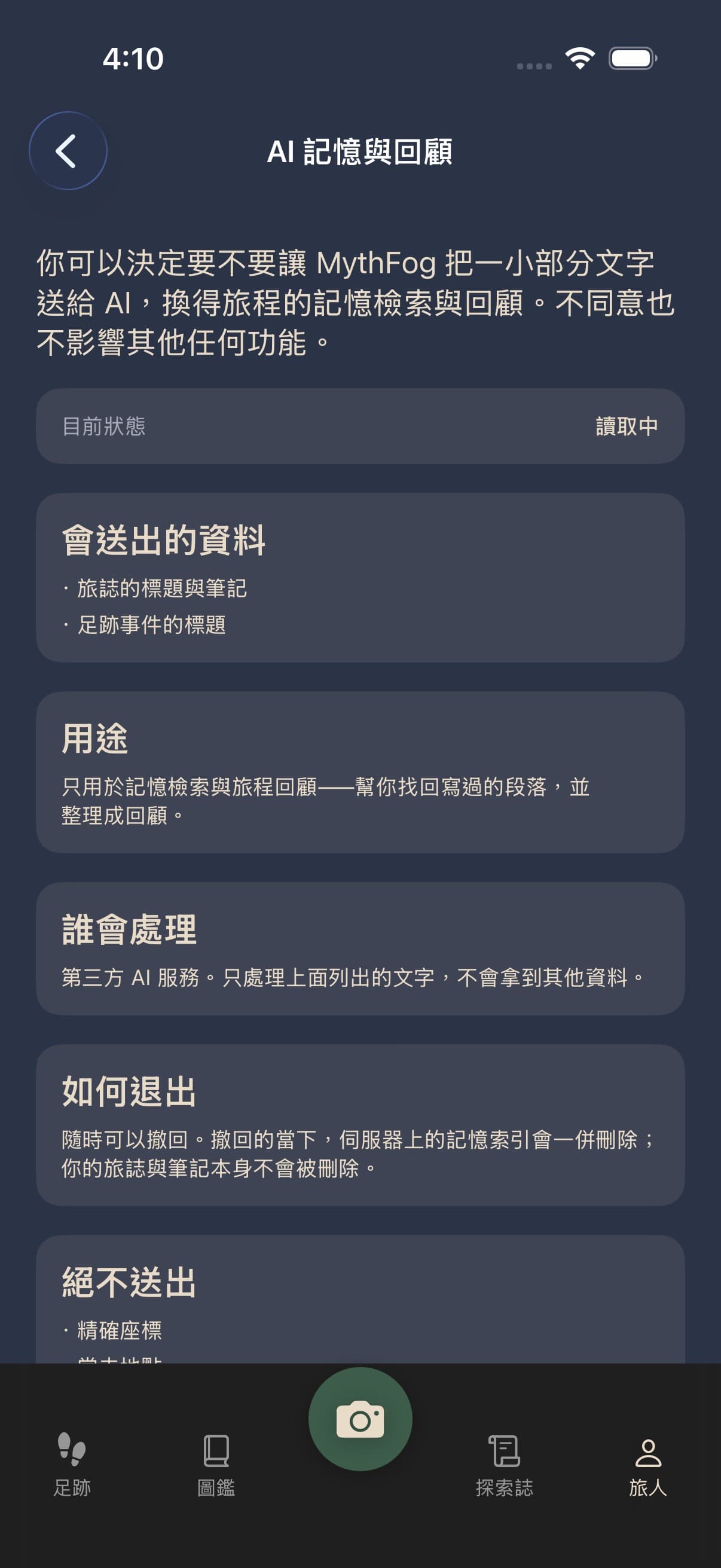
Signed-in field photos with a valid capture location upload to private storage. Cloud pixels have GPS tags stripped; capture GPS and time live in database fields for manifestation and map candidates, not inside the image sent to the model. Faces are not kept. Raw Health samples are not uploaded; claiming the sleep ink bonus sends exactly one number, the total minutes asleep that night. The life trail is off by default and records only after you turn it on yourself; while it is off or paused no location is taken at all, foreground or background. Its raw location samples stay on this phone and are deleted automatically after the retention period you choose (7, 30, or 90 days, 30 by default). AI Memory & Recap starts at Not consented, and only after you explicitly consent do journal titles and notes and discovery titles leave the app; precise coordinates, frequent places, live location, the guardian's email, and health data are never sent, and withdrawing consent deletes the memory index on the server. Friend shares still omit exact GPS. Flight-mail forwarding needs your explicit consent in the app before it works at all; without it the feature stays closed. Once you consent, the subject and body of the mail are sent to a third-party AI service to read the flights out of it. Before it goes, a rule-based filter removes email addresses, links, phone numbers, long digit strings, and some booking references and member numbers; it is not guaranteed to catch everything, and names, seats and addresses are not removed. Once a flight number is read, the flight number, airline code and departure and arrival airport codes are also sent to AirLabs, a flight-data service, to look up the timetable — never your identity, account or mail text. We keep the subject and body of the mail (without the filtering above) on the server for up to 90 days, only to retry if reading fails and so we can investigate problems. We do not use it to train models or to improve airport and flight data. It is deleted after 90 days — and the moment you withdraw consent, not 90 days later. Your location, journal contents, health data and a guardian's email are never sent. The parsed flights are kept. Five mails a month on the free tier, 30 with MythFog Pass. The guardian's email is stored encrypted. Push uses only the device push token: manifest-complete, ink-refilled, and Visit Guardian reminders share one permission, asked only after your first successful manifestation; each can be turned off in Settings, and turning them off stops the push without touching visits, capture, or manifestation. Deleting the account deletes the device push token with it. Deleting the account also removes all cloud personal data and field photos and revokes the Sign in with Apple authorization; MythFog Pass does not cancel itself, so cancel it yourself in the App Store. Offline caches live only on this phone: the friends list, the shared-journey list, weekly reflections, journey AI recaps, the Visit Guardian status (guardian labels and a masked email hint, never a full email address) and the first page of the trail timeline are stored in the phone's cache folder while you are online, kept out of iCloud and computer backups, and cleared in one go when you sign out, delete your account or switch accounts; deleting your location history on this phone also clears the stored timeline page. An email or birthday you change offline is also kept only on this phone until it is sent, and deleted as soon as it is sent or the server rejects it. See Terms and Privacy.